Help
Main screen
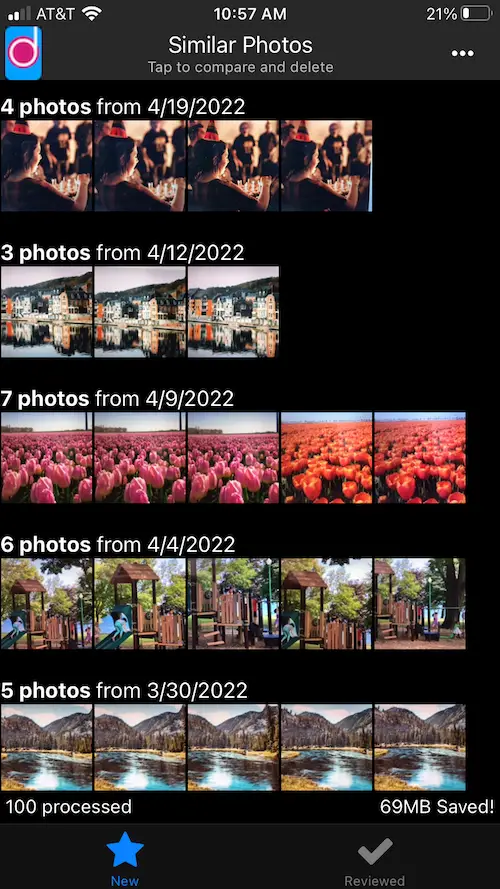
Initial screen shows the list of similar photos you have in your library.
Each row title shows the date photos were taken and how many similar ones found (up to 5 are shown in the row).
Clicking either the title or any of the photos will take you to the compare view so you can compare each similar photo and decide which one to keep.
At the bottom, there are 2 tabs: New and Reviewed. New tab shows the photos that weren't compared before. Reviewed one will contain the photos that were compared before. Since they were already compared, reviewed ones will be filtered from the New tab.
Just above the tabs, you will see 2 stats. On the left side, it shows how many photos from the library were processed and on the right side, it shows how much space you saved so far.
To find out menu and the other options, click the 3 dots on the top right corner.
Compare screen
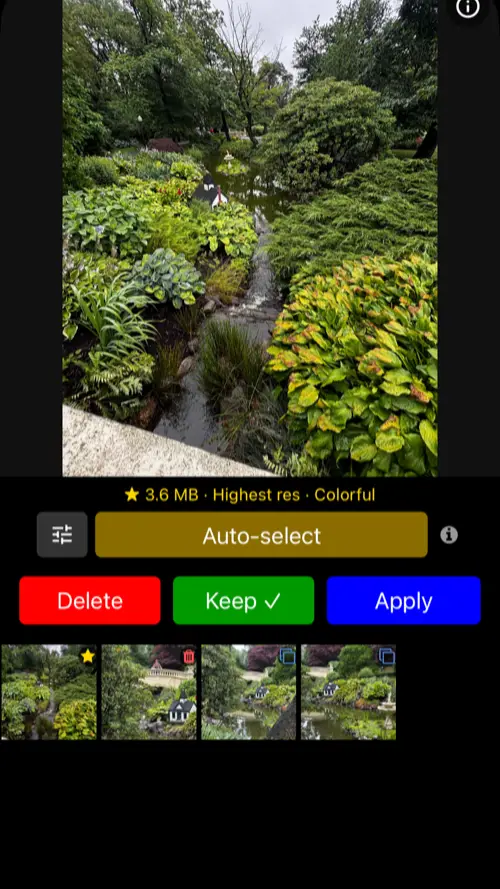
At the top part of the compare view, you see currently selected photo in bigger size. By clicking this photo you can zoom even more.
In the middle section, you see the actions you can take for the current photo.
- [1] Delete button will mark the photo as "To Be Deleted" and will put a red overlay on it.
- [2] Keep button will mark the photo as "To Be Kept". Keep is the default behavior.
- [3] Apply will bulk delete all the photos that are marked as "To Be Deleted", then will close the compare view. Apply button will show how many photos to be deleted when there are photos to be deleted. Note that, this action cannot be taken back. All the photos deleted here will be deleted from the phone.
The bottom part will have the list of all the similar photos in smaller size. The ones that were marked as "To Be Deleted" will have a red overlay in this view too.
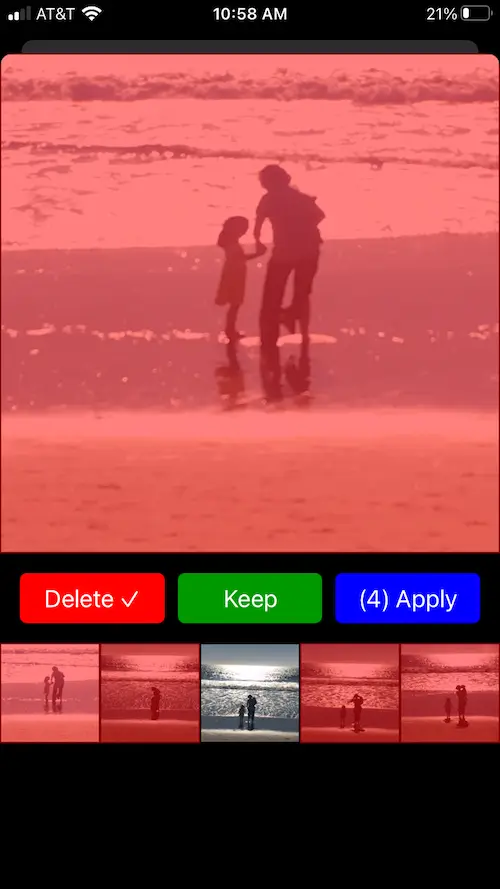
Photos to be deleted
This is how a photo marked as "To Be Deleted" looks like with a red overlay.
Zoom screen
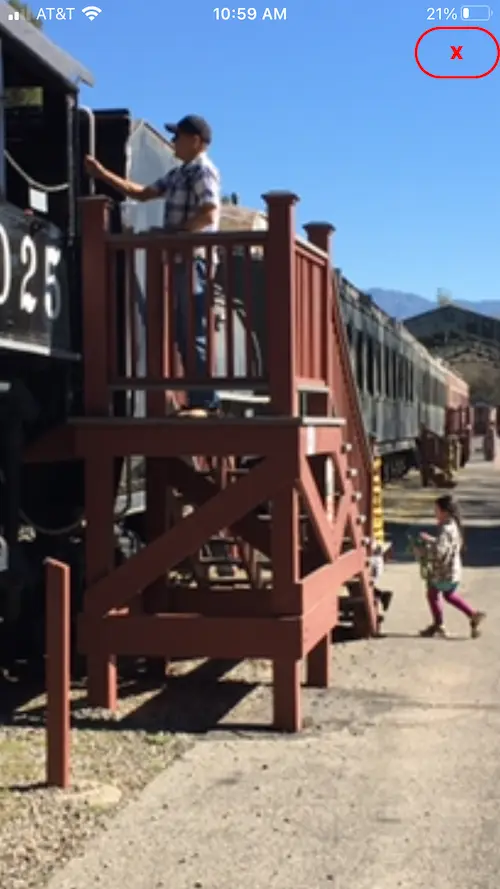
When you click on the selected photo in the compare view, you will get to the zoom view as seen in this picture.
When you are in this view, you can zoom further as long as your mobile device lets.
To exit from this view, you can either swipe down or click the red cross button.
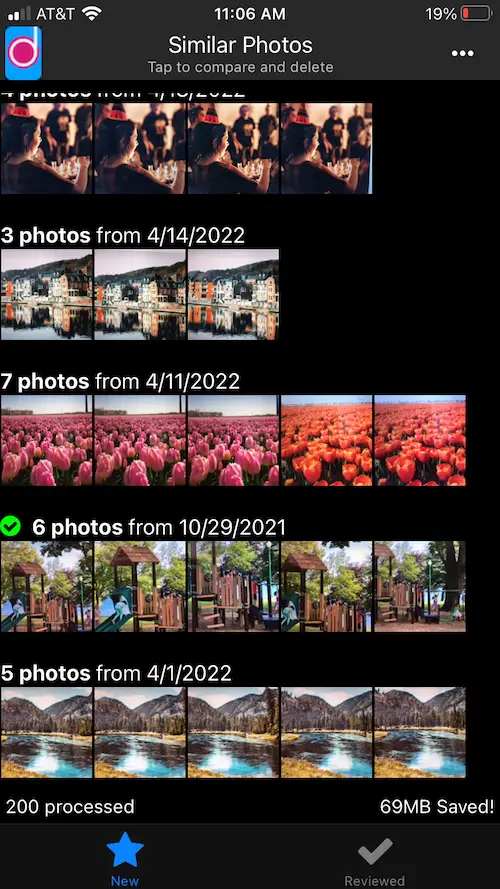
Reviewed groups
When you just review a group of similar photos, there will be a green tickmark on its title.
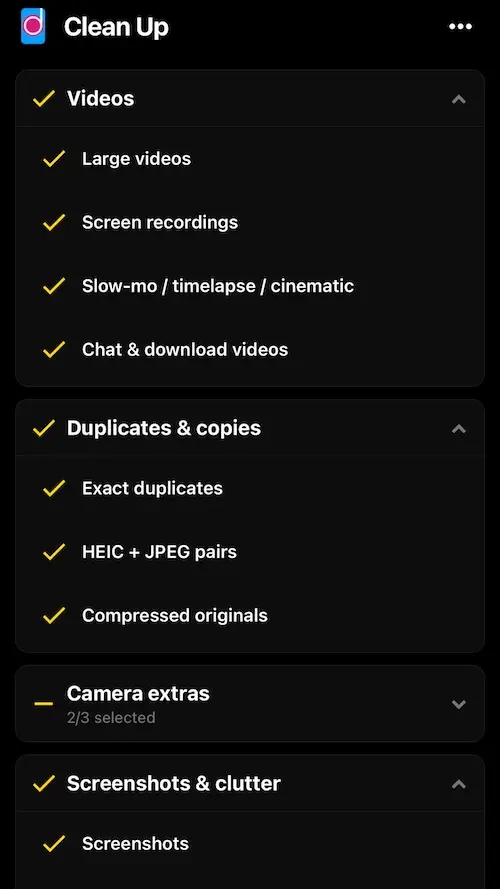
Clean Up
This feature scans your phone and finds good candidate photos for deletion. Examples include:
- Screen recordings, slow motion videos, etc.
- Screenshots, downloads, chat photos, memes, receipts, etc.
- Bursts, live photos, etc.
- Exact duplicates, HEIC + JPEG pairs, etc.
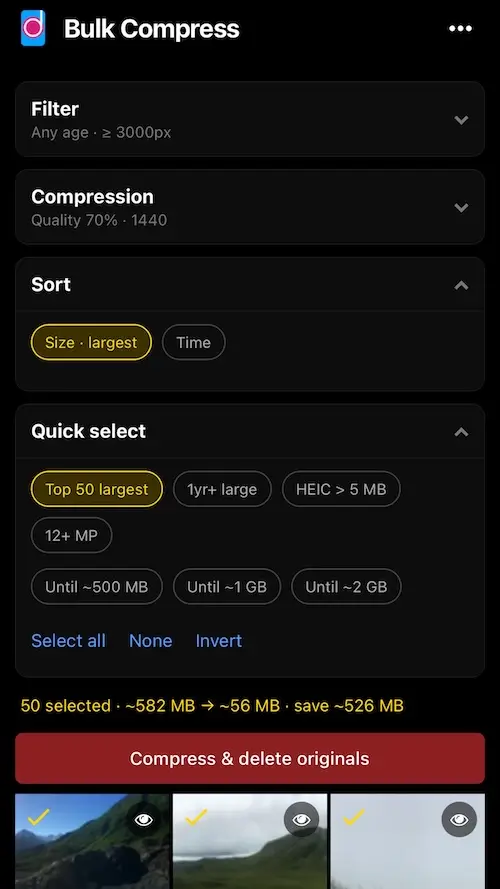
Bulk Compress
Photo sizes from modern sizes are usually larger than they need to be. This feature allows you to compress them to a smaller size in bulk without losing noticeable quality.
With several button clicks, you can save gigabytes of space on your phone.
System Information
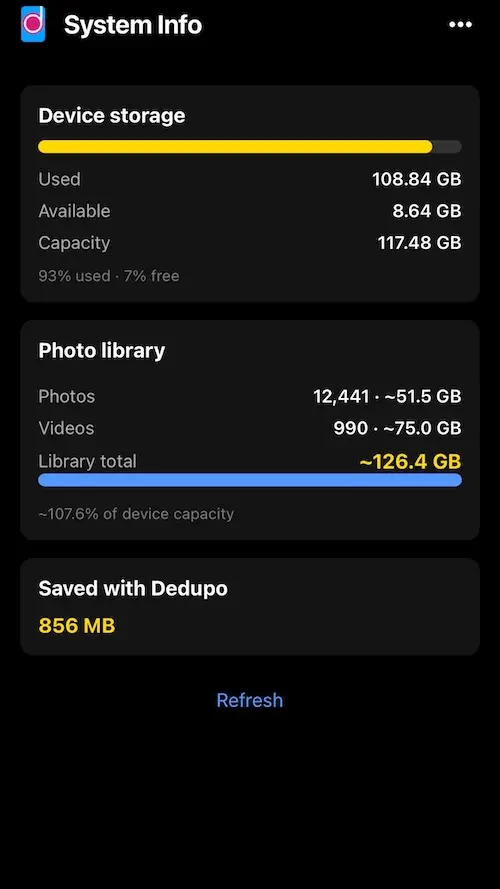
This feature shows you how much space you have on your phone and how much you have used. You can also how much videos vs photos contribute to the space usage.
Albumizer
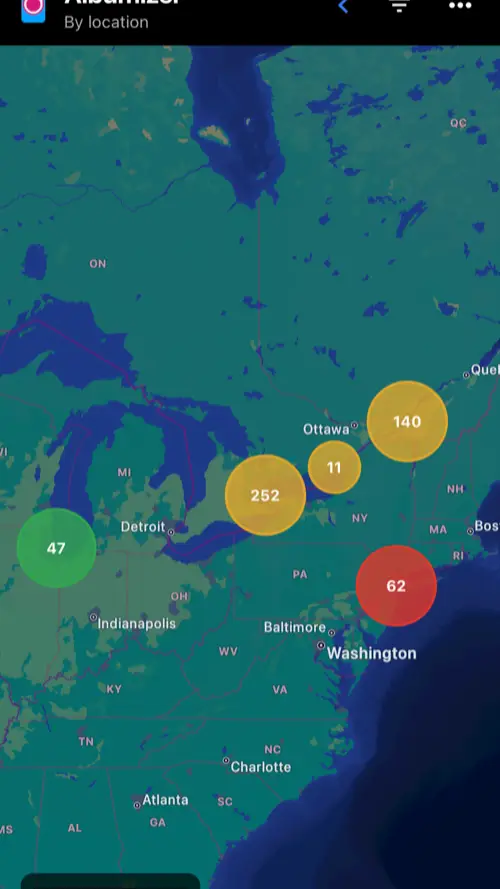
Albumizer helps you quickly group your photos by location and date so you can create albums without sorting everything by hand.
On the map view, photos are clustered by where they were taken. Each circle shows how many photos belong to that area. You can tap a cluster to explore those photos and turn them into an album.
Use the filters and navigation controls at the top to switch how photos are grouped and to narrow down what you see.
Edit Photos
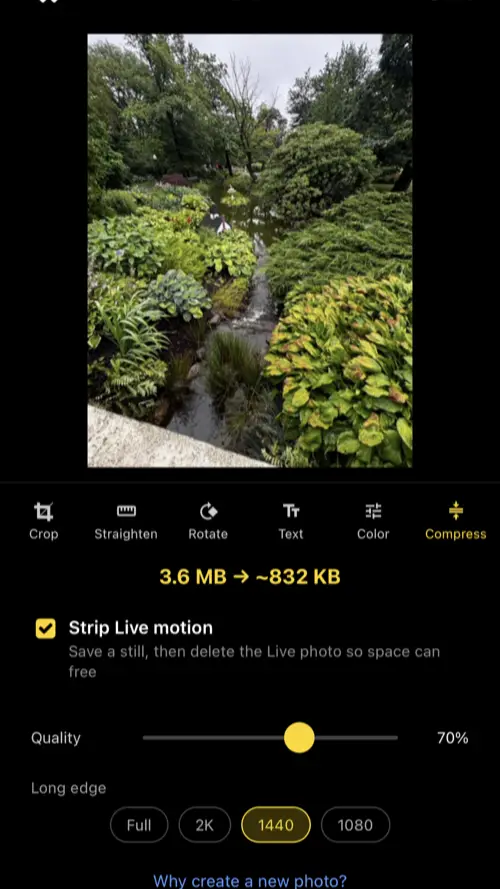
You can edit your photos directly inside Dedupo. Available tools include crop, straighten, rotate, text, color, and compress.
The Compress tool is especially useful when you want to free space without deleting the photo. You can adjust quality, choose a long-edge size, and optionally strip Live Photo motion so only a still image is kept.
When you are happy with the result, tap Save to keep the edited photo.
Edit Videos
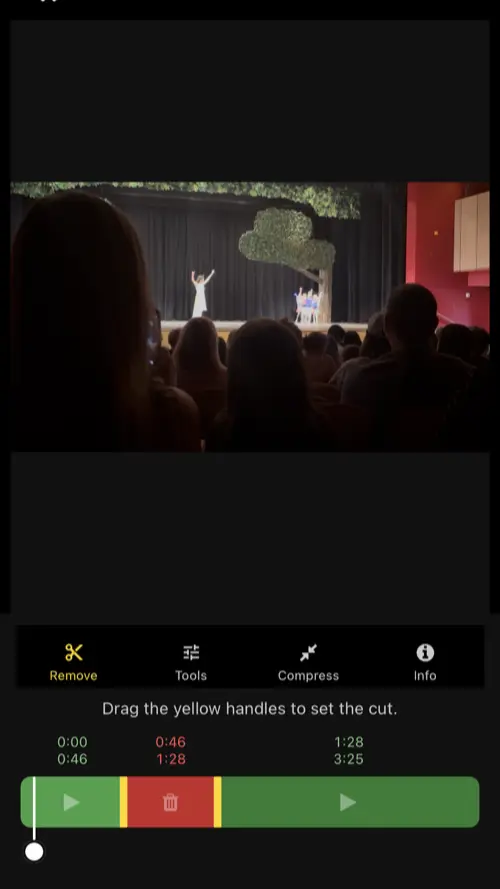
Dedupo also lets you edit videos. You can cut out unwanted or uninteresting parts, and you can crop, rotate, or compress videos as well.
In the Remove tool, drag the yellow handles on the timeline to mark the section you want to cut. The selected range is highlighted so you can review it before applying the change.
Use the other tools when you need to reframe, rotate, or reduce the video size to save storage.
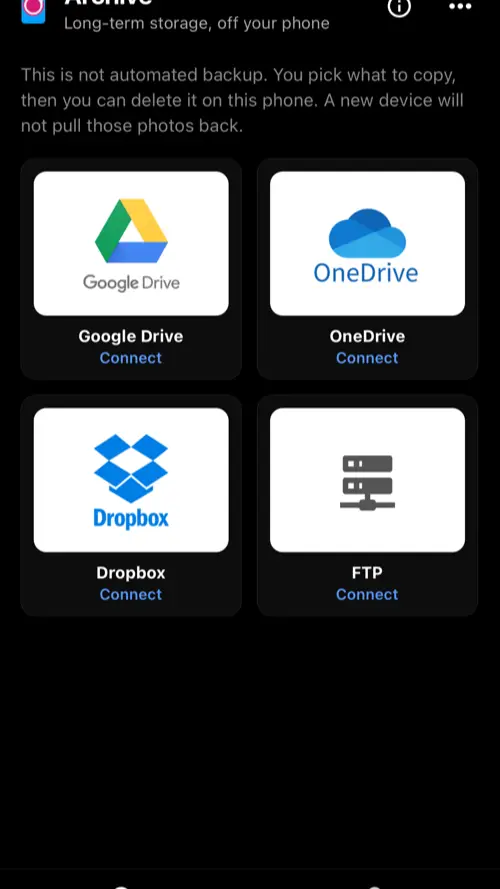
Archive (coming soon)
Archive is in the Dedupo menu. It is a one-way copy of photos and videos you choose, not a camera-roll sync.
Connect Google Drive, OneDrive, Dropbox, or your own FTP or FTPS server. Accounts in Archive are locked behind Face ID or your device passcode.
Pick the items you want to move, pick a destination folder, and start the upload. Keep Dedupo on screen until the upload finishes. Switching apps or locking the phone pauses the job.
After a successful upload you can delete the local copies on this phone. Nothing is deleted until you choose. Unlike iCloud or Google Photos, Archive does not keep a live mirror. After local delete, those items stay only in the folder you chose. They will not reappear on this phone or the next one unless you download them again.